Using Thunderbird
Using your NABET Local 53 Email with Thunderbird
FOR POP3 ACCOUNTS (see below for IMAP accounts)
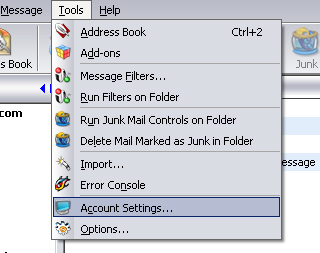
1.) From the {Tools} menu, select {Account Settings}
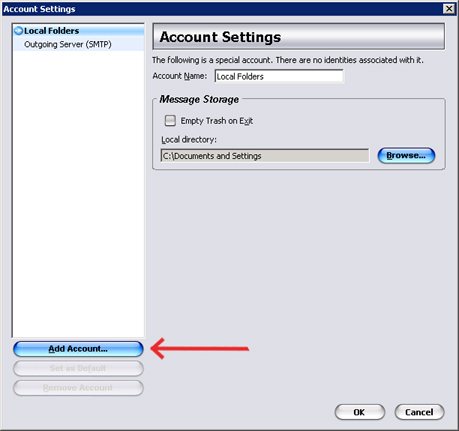
2.) Click the {Add Account} button
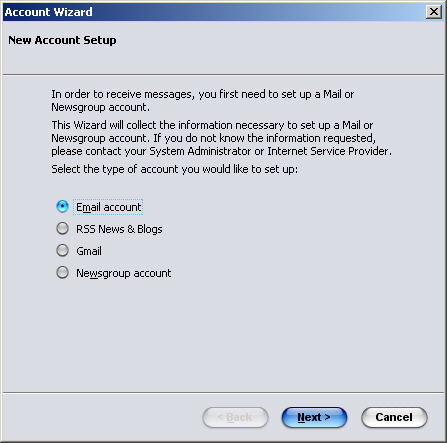
3.) Select {Email account} (as shown), then click {Next}
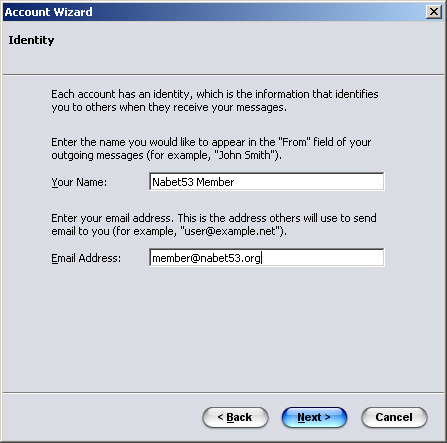
4.) Fill in the user information as shown substituting your own personal information, then click {Next}. E-mail addresses and account login names are based upon This email address is being protected from spambots. You need JavaScript enabled to view it.. For example, mail for member Jane Smith will be This email address is being protected from spambots. You need JavaScript enabled to view it.. Click {Next}
Trouble logging in? Account names have been created from the information NABET Local 53 has on file. Let's say the name you go by is 'Larry Smith', but the information on file is Lawrence Smith. In this example, your email address and user name would be This email address is being protected from spambots. You need JavaScript enabled to view it.. The same would be true for spouses with hyphenated married names. As an example, Mary Smith-Jones would have an email address and user name of This email address is being protected from spambots. You need JavaScript enabled to view it..
5.) Select {POP}, and add the server name "mail.nabet53.org" (w/o the quotes), then click {Next}
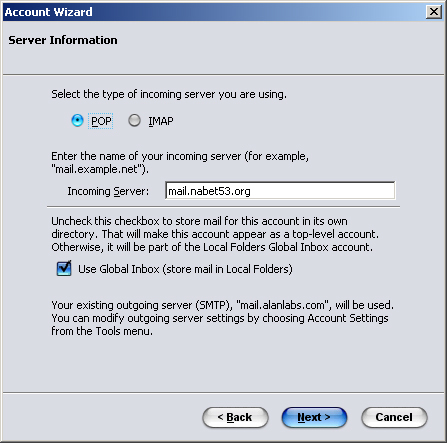
6.) Enter your Account Name (same as your email address), then click {Next}
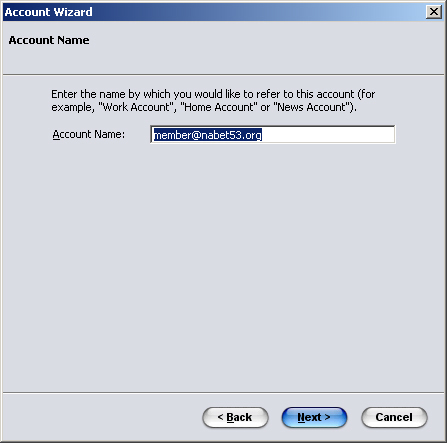
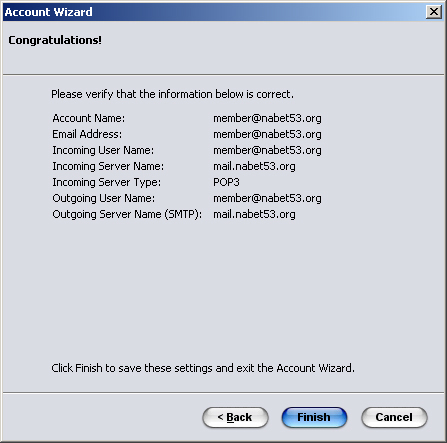
7.) Click {Finish}
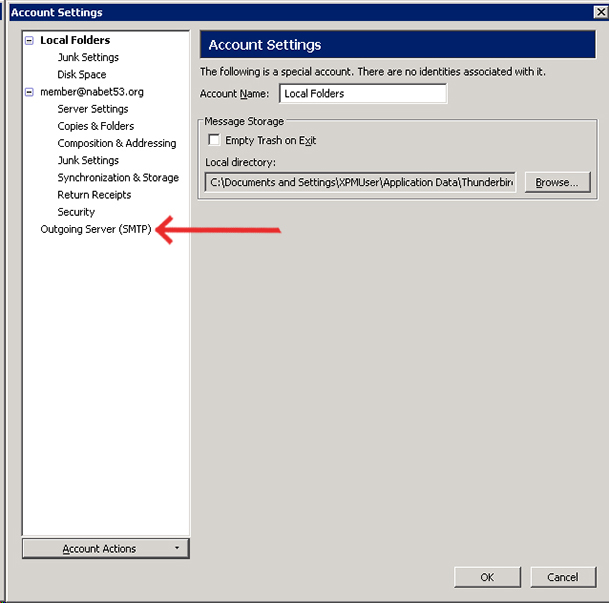
8.) From the {Tools} menu, select {Account Settings}. Select {Outgoing Server}
9.)Select the Nabet53 account, then click {Edit}
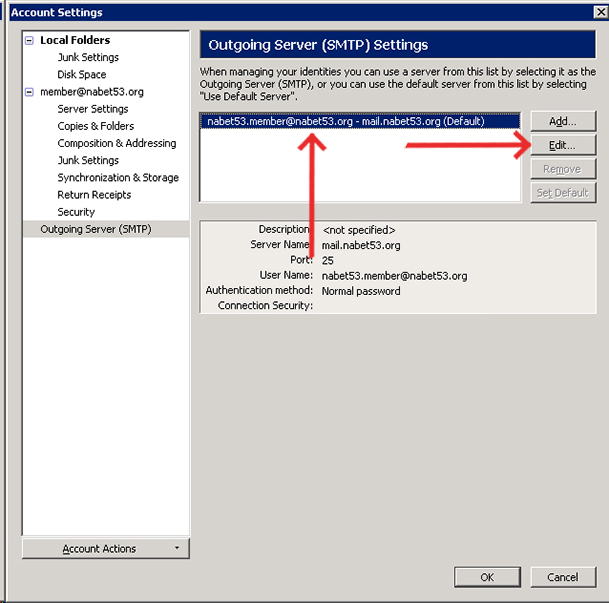
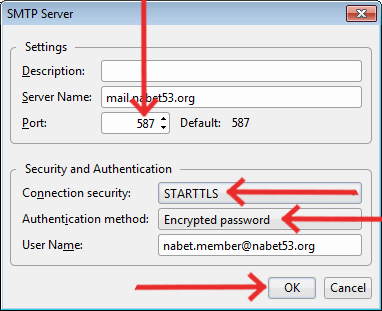
10.) mail.nabet53.org is a secure server that requires advanced settings. Insure the SMTP Server Port is set for port 587, Edit the entry if needed. Select {STARTLS} from the {Connection Security} dropdown box. Select {Encrypted password} from the {Authentication method} dropdown box, and click {OK}. Click {OK} once again to confirm and exit Account Settings.
Congratulations! You are now ready to begin using your NABET Local 53 email account with Thunderbird.
FOR IMAP ACCOUNTS (see above for POP3 accounts)
1.) From the {Tools} menu, select {Account Settings}
2.) Click the {Add Account} button
3.) Select {Email account} (as shown), then click {Next}
4.) Fill in the user information as shown substituting your own personal information, then click {Next}. E-mail addresses and account login names are based upon This email address is being protected from spambots. You need JavaScript enabled to view it.. For example, mail for member Jane Smith will be This email address is being protected from spambots. You need JavaScript enabled to view it.. Click {Next}
Trouble logging in? Account names have been created from the information NABET Local 53 has on file. Let's say the name you go by is 'Larry Smith', but the information on file is Lawrence Smith. In this example, your email address and user name would be This email address is being protected from spambots. You need JavaScript enabled to view it.. The same would be true for spouses with hypenated married names. As an example, Mary Smith-Jones would have an email address and user name of This email address is being protected from spambots. You need JavaScript enabled to view it..
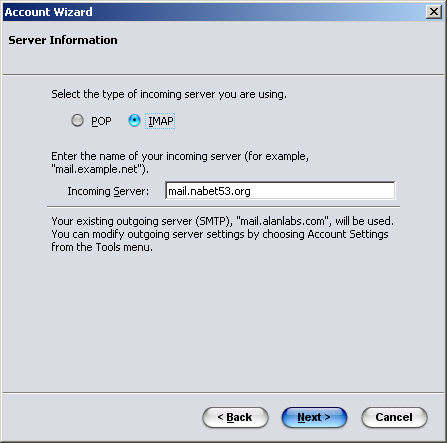
5.) Select {IMAP}, and add the server name "mail.nabet53.org" (w/o the quotes), then click {Next}
6.) Enter the Incoming User Name, then click {Next}
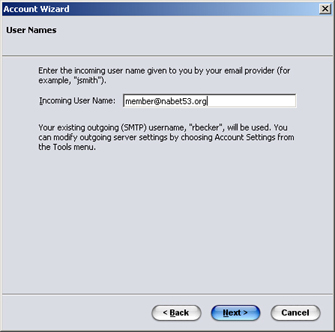
7.) Enter your Account Name (same as your email address), then click {Next}
8.) Click {Finish}
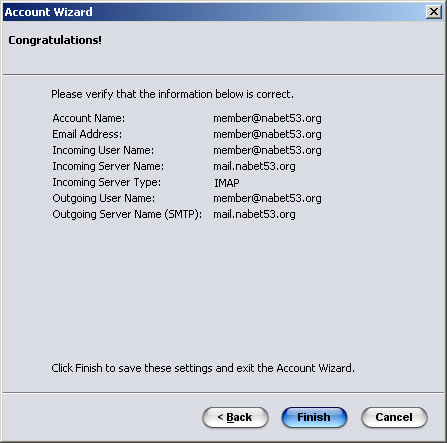
9.) From the {Tools} menu, select {Account Settings}. Select {Outgoing Server}
10.) Select the Nabet53 account, then click {Edit}
11.) mail.nabet53.org is a secure server that requires advanced settings. Insure the SMTP Server Port is set for port 587, Edit the entry if needed. Select {STARTLS} from the {Connection Security} dropdown box. Select {Encrypted password} from the {Authentication method} dropdown box, and click {OK}. Click {OK} once again to confirm and exit Account Settings.
Congratulations. Thunderbird is now configured to use the Nabet53 mail system.

Latest Events
| FOX/KTTV/DISNEY FX Shop Stewards Meeting Tue, Jun 09, 6:00pm - 8:00pm |
| Executive Board Meeting Thu, Jun 11, 11:00am - 1:00pm |
| NBC Shop Steward Meeting Thu, Jun 11, 6:00pm - 8:00pm |
Featured Links